
AI SystemsSystem Design, simply · AI 31
How AI agents read web pages: the accessibility tree, 19 of 20 clicks in a simulation
How AI agents read web pages: roles and names from the accessibility tree. In a simulation, role and name clicks hit 19 of 20 layouts; saved pixel spots hit 4.
Drafted with AI assistance, then checked and edited by a human engineer · How we write
When AI agents read web pages through a browser tool, they often skip the pictures. Browser tools such as Playwright's MCP server hand the model the accessibility tree, a text list of roles and names such as button "Add Trail Runner Shoes to cart", and the model picks the element to click from that text. In a simulation saved on 2026-11-15, finding the button by role and name worked on 19 of 20 changed layouts, while a pixel spot saved from the first screenshot worked on 4.
How do AI agents read web pages?
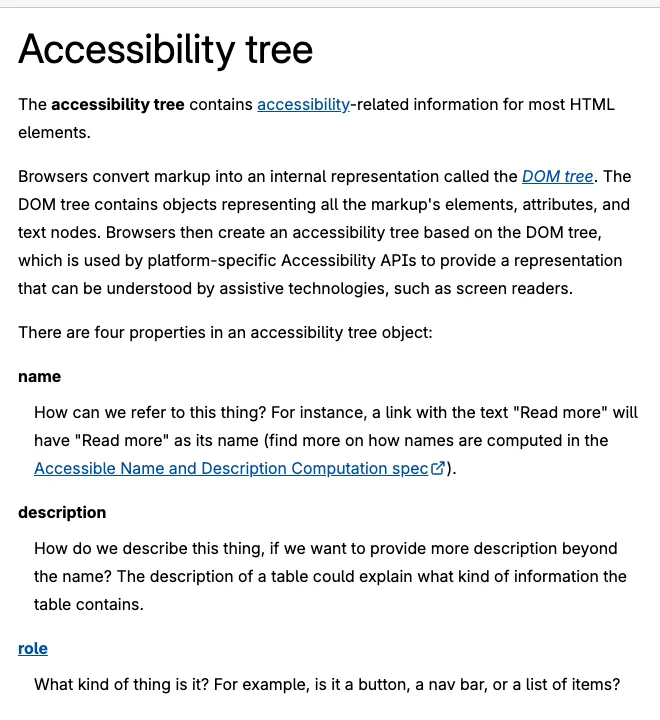
Accessibility tree: the structure a browser builds from the DOM and exposes through the platform accessibility APIs, so assistive technology such as a screen reader can understand the page. Each object in it has a name, a description, a role and a state.
MDN says the tree "contains accessibility-related information for most HTML elements" (MDN, Accessibility tree). A button's role says what it is; its name says which one. The text snapshot carries semantic structure and labels, without the page's visual appearance.
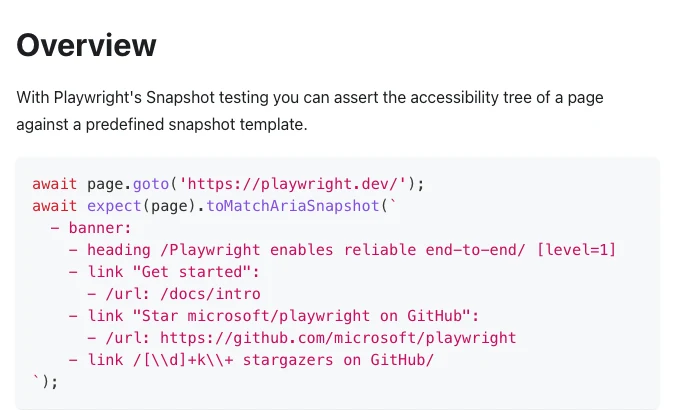
In Playwright MCP, the agent does not read the browser's platform tree directly. Playwright builds its own text version, puts it in the model's context and calls that text an aria snapshot, "a YAML representation of the accessibility tree of a page" (Playwright, Aria snapshots). It builds the snapshot from the DOM, computing roles and accessible names itself (ariaSnapshot.ts). Its MCP server exposes element references in that snapshot, and the model targets an element by its reference when it calls a tool such as click (Playwright MCP tools). Separately, getByRole resolves the matching DOM elements by role and name when an action runs (Playwright, Locating elements). Our simulation models that second approach.
Where an accessible name comes from
Accessible name: the name of a user interface element as exposed by the platform accessibility API. It can come from visible text, like a button's label, or from invisible text, like the text alternative of an icon.
The W3C accname 1.2 Working Draft (dated 04 November 2026) defines the computation steps. Common naming precedence for controls, with element-specific exceptions:
| Step | Source of the name | Example |
|---|---|---|
| 1 | aria-labelledby: text of the referenced elements | a delete button named by its row's file name |
| 2 | aria-label | <button aria-label="Save to wishlist"> |
| 3 | host language label, such as alt or <label> | <img alt="Yellow hooded rain jacket"> |
| 4 | name from content, for roles that allow it | <button>Add to cart</button> |
| 5 | tooltip attribute such as title | last resort |
In this simulation, the image has alt="" and no other naming mechanism, so it is omitted. HTML-AAM allows an image with empty alt to remain exposed when another valid mechanism supplies its name. Without one, whatever text is painted in the image's pixels has no route into the tree.
What the simulation did
The script labs/ai-31/compare-accessibility-tree-vs-pixel-clicks.mjs is a simulation. It does not open a browser and it calls no AI model. It builds one in-memory shop page with 6 product cards (photo, name, price, an "Add (product name) to cart" button and an icon-only heart button) and derives two views from that one model: a text tree printed in the shape of a Playwright aria snapshot, and a 1280x1048 screenshot drawn into pixels.
It records the target once on the desktop layout, as a pixel spot and as role plus name, then replays the click on 20 changed layouts (banners, reorders, phone and tablet widths, zoom, a sidebar, an inserted product, a renamed button) and hit-tests each click against the model's own boxes. Part of the tree it prints:
# accessibility tree the simulated agent reads (labs/ai-31/output.txt, excerpt:
# items 1 and 4 of the list, outer levels and 4 other items left out)
- listitem:
  - img "Blue trail running shoe with orange laces"
  - heading "Trail Runner Shoes" [level=3]
  - text: "$89.00"
  - button "Add Trail Runner Shoes to cart"
  - button
- listitem:
  - heading "Canvas Day Pack" [level=3]
  - text: "$64.00"
  - button "Add Canvas Day Pack to cart"
  - button
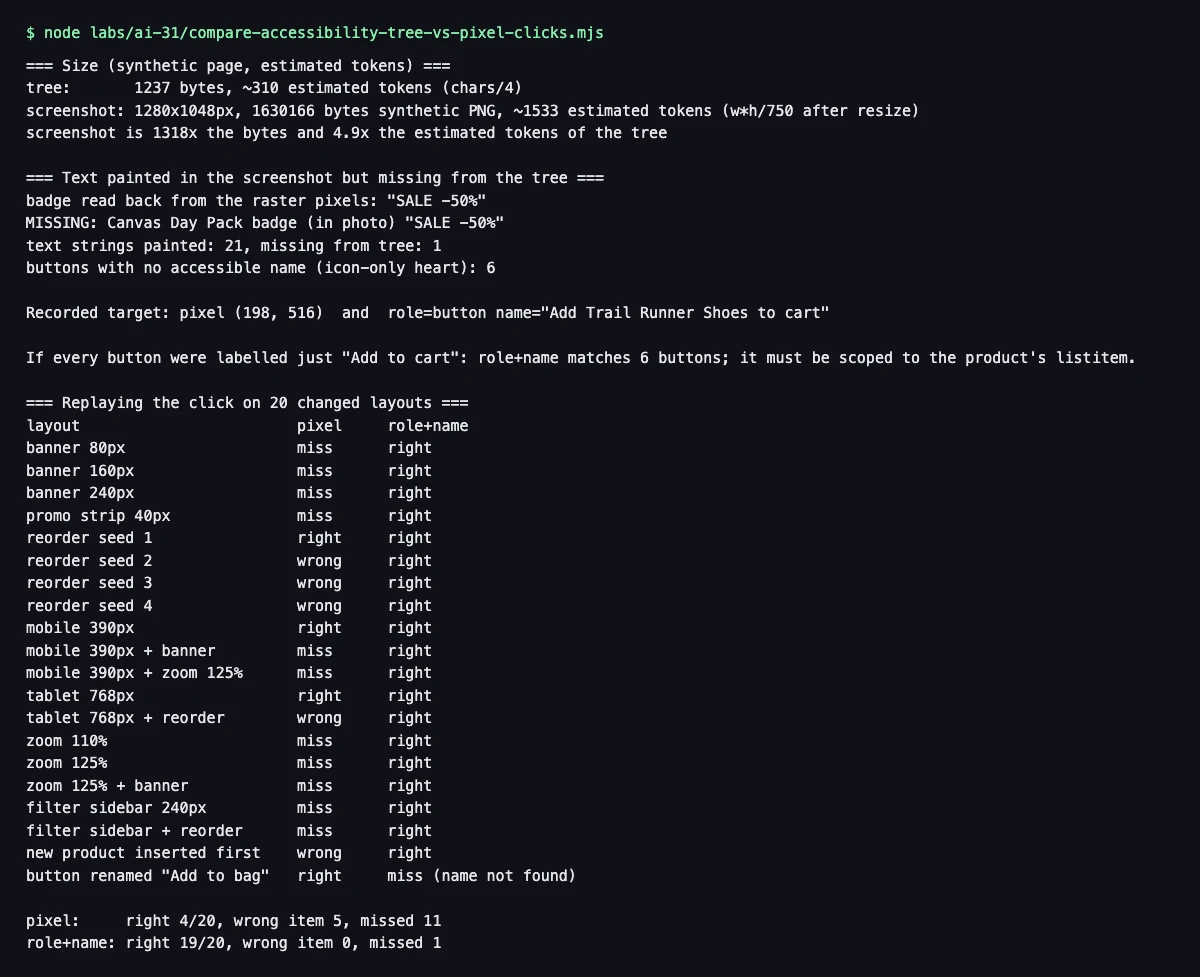
Results, labelled simulated (one saved run, 2026-11-15, Node 22, seed 31; a rerun prints the same numbers):
| Click method, 20 changed layouts | Right product | Wrong item | Missed |
|---|---|---|---|
| Saved pixel spot | 4 | 5 | 11 |
| Role + accessible name | 19 | 0 | 1 |
labs/ai-31/output.txt (simulated), captured 2026-11-15.Why role and name survived the layout changes
A saved pixel spot records where the button was on the first layout. A banner pushes the button down, and the old spot now hits empty space: all 6 layouts with a banner or promo strip missed. Reorders and an inserted product put another product's button or a heart button under the spot, which is how 5 clicks landed on the wrong item.
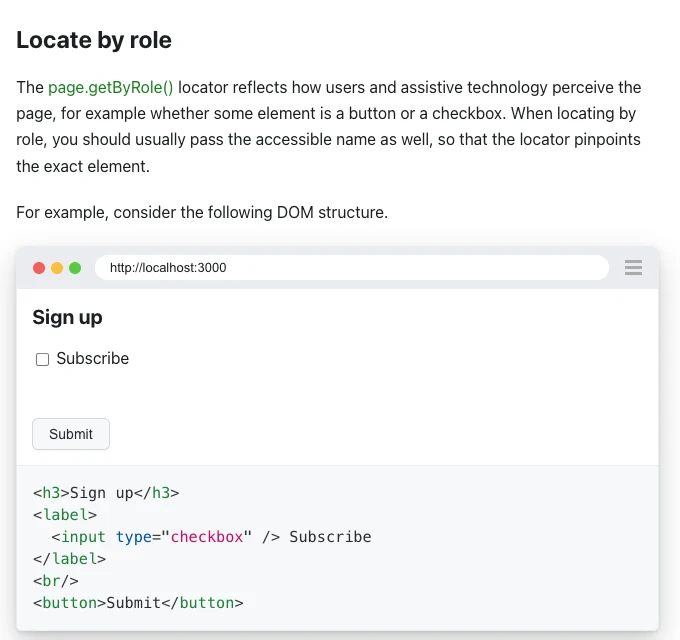
Role plus name is looked up again on every replay: the tool asks for the button named "Add Trail Runner Shoes to cart" and gets its current box. Playwright documents getByRole as reflecting "how users and assistive technology perceive the page" and advises passing the accessible name too (Locate by role).
A Playwright click requires exactly one matching element (Strictness), then waits for visibility, stability, enabled state and receipt of pointer events (Actionability). An overlay can block a correctly named button. The simulation performs only box hit-testing.
The one miss came when the shop renamed the button to "Add Trail Runner Shoes to bag": the saved name no longer existed. And if every button just said "Add to cart", role plus name would match 6 buttons, so the lookup would have to be scoped to the product's list item first.
An agent that takes a fresh screenshot every step would look again instead of reusing an old spot; that loop is the subject of Move 1 button (AI 14). The simulation replays stored coordinates only.
Tree or screenshot: how big is each?
For this one page, the tree is 1,237 bytes and the script estimates about 310 tokens (characters / 4). The screenshot is 1280x1048; resized to at most 1568 px on the long edge and about 1.15 MP, then width x height / 750, it is about 1,533 estimated tokens. That is a 4.9x ratio between two estimates, for this page only.
Both are the lab's own rough rules. Real tokenizers differ, and vision models count images their own way: one vendor's current vision docs, for example, count 28 by 28 pixel patches with per-model caps. Real shop trees are also much larger than this toy one. In clients that resend conversation history, retained snapshots add input tokens on later turns (why an AI agent re-sends its history).
Where the accessibility tree breaks
What the tree left out in the simulation:
| Gap | What the simulation printed | What a tree-only agent gets |
|---|---|---|
| Icon-only buttons | 6 heart buttons with no accessible name | 6 bare button lines, no way to tell what they do |
| Text inside an image | 1 of 21 painted strings missing: "SALE -50%" on the Canvas Day Pack photo, alt="" | the price text $64.00 and no sale |
| Renamed label | "to cart" became "to bag" | a lookup that finds nothing |
The badge is missing by construction (the model follows the empty-alt rule); the script reads "SALE -50%" back out of the raster pixels to show it is in the picture. A canvas has the same problem across its whole area. MDN notes that "Canvas content is not exposed to accessibility tools as semantic HTML is" (MDN, canvas).
The unnamed buttons still expose their role and place in the structure, but nothing in the tree says what they do, and the image-only badge is absent. A screenshot view helps with both. The Playwright MCP server offers coordinate-based tools as an opt-in (--caps=vision) beside its default snapshot tools. A page with good names keeps an agent in the smaller text view longer.
How to make a page readable for AI agents
WCAG's non-text content criterion asks for a text alternative for non-text content and a name that describes the purpose of every control. The snippets below are illustrations; the simulation did not test a repaired page.
<!-- illustration, not run here -->
<button type="button" aria-label="Save Trail Runner Shoes to wishlist" aria-pressed="false">
  <svg aria-hidden="true" focusable="false"><!-- heart icon --></svg>
</button>

<!-- the sale as real text, not pixels in the photo -->
<span class="badge">Sale: half price</span>
<img src="day-pack.jpg" alt="Tan canvas day pack with leather straps">- Give every button, link and input an accessible name that says what it does, unique within its region.
- Keep names stable. Renaming "to cart" to "to bag" broke the only lookup that failed in the simulation.
- Put prices, sales and warnings in real text. If text must be inside an image, the W3C images of text tutorial says the text alternative must contain the same text.
- Use
alt=""when the image adds no information beyond the surrounding content (W3C decorative images). - Guard it with a test, so a rename fails your build instead of an agent's task:
// not run here: fails if the cart button loses or changes its accessible name
const card = page.getByRole('listitem').filter({ hasText: 'Trail Runner Shoes' });
await expect(card.getByRole('button', { name: 'Add Trail Runner Shoes to cart', exact: true })).toBeVisible();
For apps that agents should drive often, a tool interface may suit better than any page: see MCP vs API and how an AI client learns new tools (AI 13).
What this simulation does not show
Both views come from one in-process model, so the 19 of 20 shows the idea (look the element up again, then click its current box), not how a real browser or agent behaves. Pixel clicks were replayed with no scrolling. To rerun it: node labs/ai-31/compare-accessibility-tree-vs-pixel-clicks.mjs with Node 22 or newer, no install and no network; every line except run time matches the saved output.
This article describes general patterns with a small simulation. It does not describe any company's private systems or measure any AI product. Numbers come from one saved run on 2026-11-15 with seed 31.
Frequently asked questions
Do AI agents look at screenshots or read the HTML?
Both approaches exist. Playwright MCP uses accessibility snapshots by default and offers optional coordinate tools.
What is an accessible name?
An accessible name identifies a control. Sources include referenced labels, `aria-label` and permitted element content.
How do I make my website work for AI agents?
Name controls clearly and provide text alternatives for important visual information.
Sources
- MDN: Accessibility tree (glossary)developer.mozilla.org
- W3C: Accessible Name and Description Computation 1.2 (Working Draft)w3.org
- W3C: HTML Accessibility API Mappings 1.0w3.org
- Playwright: Locators, locate by roleplaywright.dev
- Playwright: Aria snapshotsplaywright.dev
- Playwright MCP server (README)github.com
- Playwright: Strictnessplaywright.dev
- W3C WAI: Decorative imagesw3.org
- MDN: The canvas element, accessibilitydeveloper.mozilla.org

Written by a software engineer and system architect with 10+ years of building production web, payment, ticketing and accounting systems in Japan and Nepal. About us